Campaigns
Scheduled sales that start and end on their own, templates, and overlapping campaigns.
A campaign is a bulk change with a start and an end: the products change at the start and go back at the end.
Create a campaign
- Open Campaigns › New campaign. The editor has four steps: Products, Changes, Schedule and Review.
- Schedule: the start and, optionally, the end, in the store's timezone (WooCommerce › Settings › General, or Settings › General). A campaign without an end runs until you revert it. Daylight saving and later timezone changes never move a scheduled campaign.
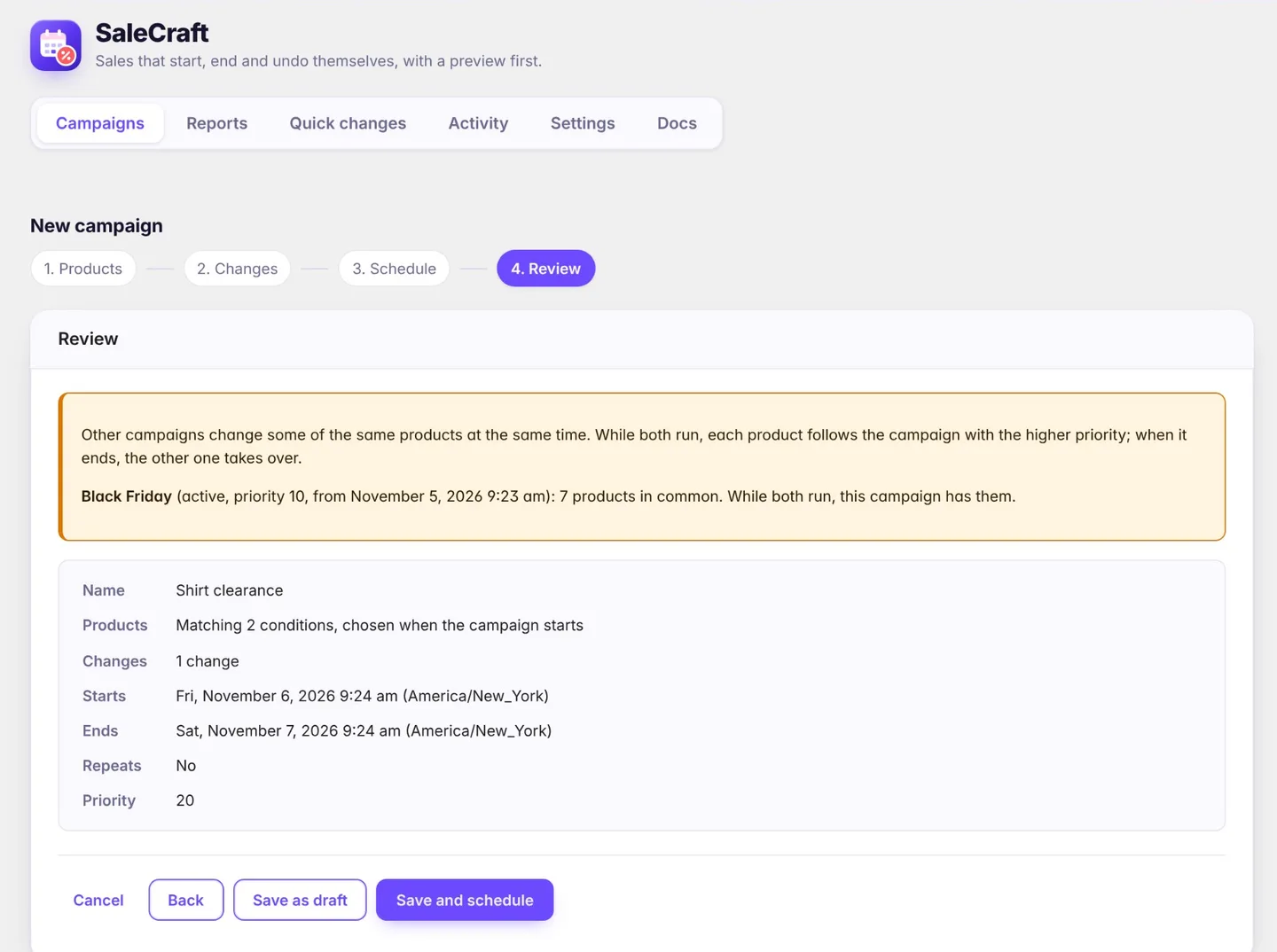
- Review shows the rules, the changes and any other campaign that touches the same products in the same period (see Overlapping campaigns). Save as a draft, or save and schedule.
Start from a template
Pro New campaign first offers five templates. Pick one and the editor opens with everything filled in; check each step and change anything before you save.
| Template | Discount | Products | When |
|---|---|---|---|
| Pro Slow sellers | 30% off | Published, in stock, no paid order in the last 60 days, added more than 60 days ago | Tomorrow 00:00, for a week, repeating every month |
| Black Friday | 25% off | Published, in stock | Black Friday 00:00 until Monday 00:00 |
| Cyber Monday | 20% off | Published, in stock | The Monday after Black Friday, all day |
| Weekend flash sale | 15% off | Published, in stock | The next Friday 18:00 until Monday 00:00 |
| Clearance | 40% off | Published, in stock, added more than 90 days ago | Tomorrow 00:00, for two weeks |
Dates are in the store's timezone and always lie ahead: once this year's Black Friday has started, the template offers next year's. The discount is a percentage off the regular price, and like every discount it never raises a deeper sale already in place. Start from scratch opens an empty editor instead.
Sell what is not selling Pro
The Slow sellers template turns slow stock into a sale that runs itself. Each month it starts a one-week sale on whatever has not sold in the last 60 days, then puts the prices back. Because every run chooses its products when it starts, a product that sells again drops out of the next run, and one that stops selling joins it. Products added in the last 60 days are left out, so new arrivals are not discounted for not having sold yet. Change the days, the discount or the repeat before you save; the rules are Last sold and Units sold (see Choosing products).
While a store has no campaigns yet, the Campaigns tab shows these templates together with a short overview of how a campaign works.
What happens next
- At the start, the products matching the rules at that moment are chosen once and changed in the background. Products added later are not included. A start that comes late (no visitors, cron off) still runs, as long as the end has not passed.
- While active, the campaign page shows each product's result. Edit a product by hand and your edit wins: at the end that value is not put back.
- At the end, or when you click Revert now, every product goes back to how it was before, except anything edited by hand since.
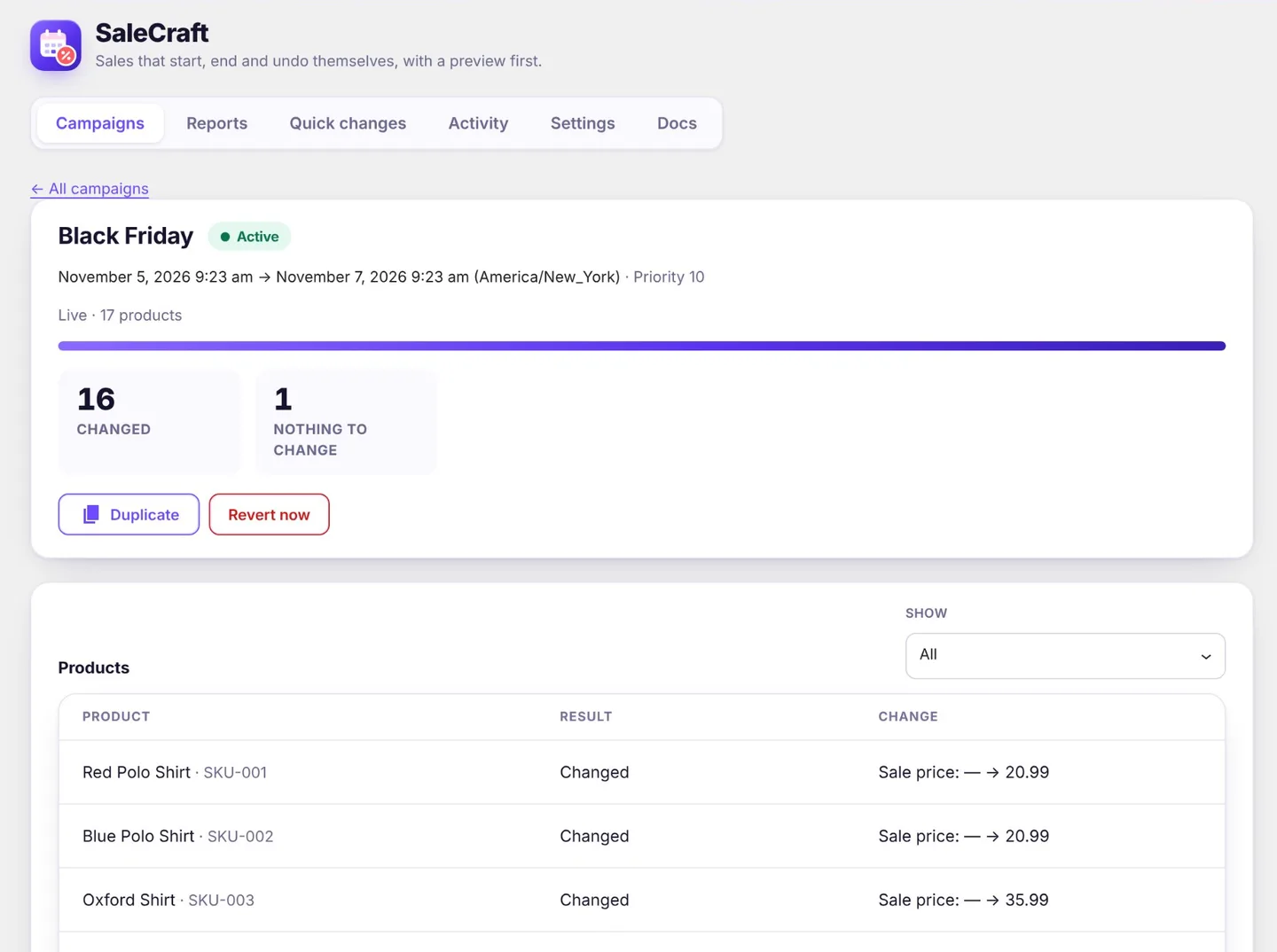
Draft and scheduled campaigns can be edited, unscheduled (back to draft) or deleted. Active campaigns can be reverted; ended ones stay for the record.
Repeating campaigns Pro
A campaign can repeat every week, every 2 weeks or every month. Pick it under Repeat on the Schedule step, or click Every weekend (Saturday 00:00 to Monday 00:00) or Every Friday (Friday 00:00 to Saturday 00:00) to fill in the next one. Under Stop repeating choose never, after a number of runs, or after a date.
- Each run is a campaign of its own, with its own products, results and sale performance. Products are chosen when the run starts and restored when it ends, and hand edits are kept, exactly as for any campaign.
- When a run starts, the next one is scheduled and appears in the list. To stop repeating, delete or unschedule that next run. To change later runs, edit it: the runs after it follow its new times.
- A repeating campaign needs an end, and each run must end at least an hour before the next one starts.
- A monthly run keeps its day of the month. In a shorter month it falls on the last day (the 31st becomes the 30th or the 28th) and returns to the 31st the month after.
- If scheduled tasks did not run for a while, runs whose start has passed are skipped: the next one is scheduled from now on.
- The calendar shows the later runs that are not scheduled yet with a dashed outline.
Duplicate a campaign
Click Duplicate on a campaign's page or in the list to start a new campaign with the same products, changes and priority and repeat. A copy of a past campaign moves to the same weekday and time after today; change the name and times, then save it as a draft or schedule it. Nothing is saved until you do.
Notifications Pro
Under SaleCraft › Settings › Notifications you can get an email, a Slack message, or both when a campaign starts, ends, is reverted, or does not run on time. Each event has its own checkbox. Email goes to the addresses you list, or to the site's administration email; Slack uses an incoming webhook URL. Notifications are off until you turn them on, and Send test notification checks the setup.
A Slack notification is sent from your site to Slack (the webhook address you enter), and contains the campaign name, what happened, product counts, times, a link to the campaign in your admin and your site name. Email goes through your site's own mail setup. Nothing is sent to anyone else; see Licence, updates and connections.
A notification is sent when the campaign event runs, so it is only as punctual as the site's scheduled tasks: with WP-Cron that is on the next page visit after the time. For exact timing, set up a server cron job (see Installation).
Did not run on time is sent once per campaign start or end that is more than 15 minutes overdue, saying when it was due and when the plugin noticed. The campaign itself is not changed: when scheduled tasks catch up it starts or ends as usual (or, if its whole window has passed, it is marked Did not run).
Overlapping campaigns
Two active campaigns may want the same product, for example a storewide 10% sale and a 30% clearance. Each campaign has a priority: higher wins, and on a tie the one that started later wins.
- Only one campaign changes a given part of a product (its price, its stock, a taxonomy, a custom field) at a time. A product the higher-priority campaign holds waits in the lower one (Waiting for a higher-priority campaign).
- When the higher one ends, the waiting campaign takes the product over and applies its own change, starting from the original price, not from the other campaign's.
- Campaigns that change different parts of the same product (one the price, one a category) both apply.
The review step lists the overlaps before you schedule.
Vendor campaigns (Dokan) Pro
On a Dokan marketplace you can let vendors run campaigns on their own products from their dashboard. Their campaigns always have the lowest priority, so where they meet one of yours, yours applies first. See Compatibility.